What is xlwings?
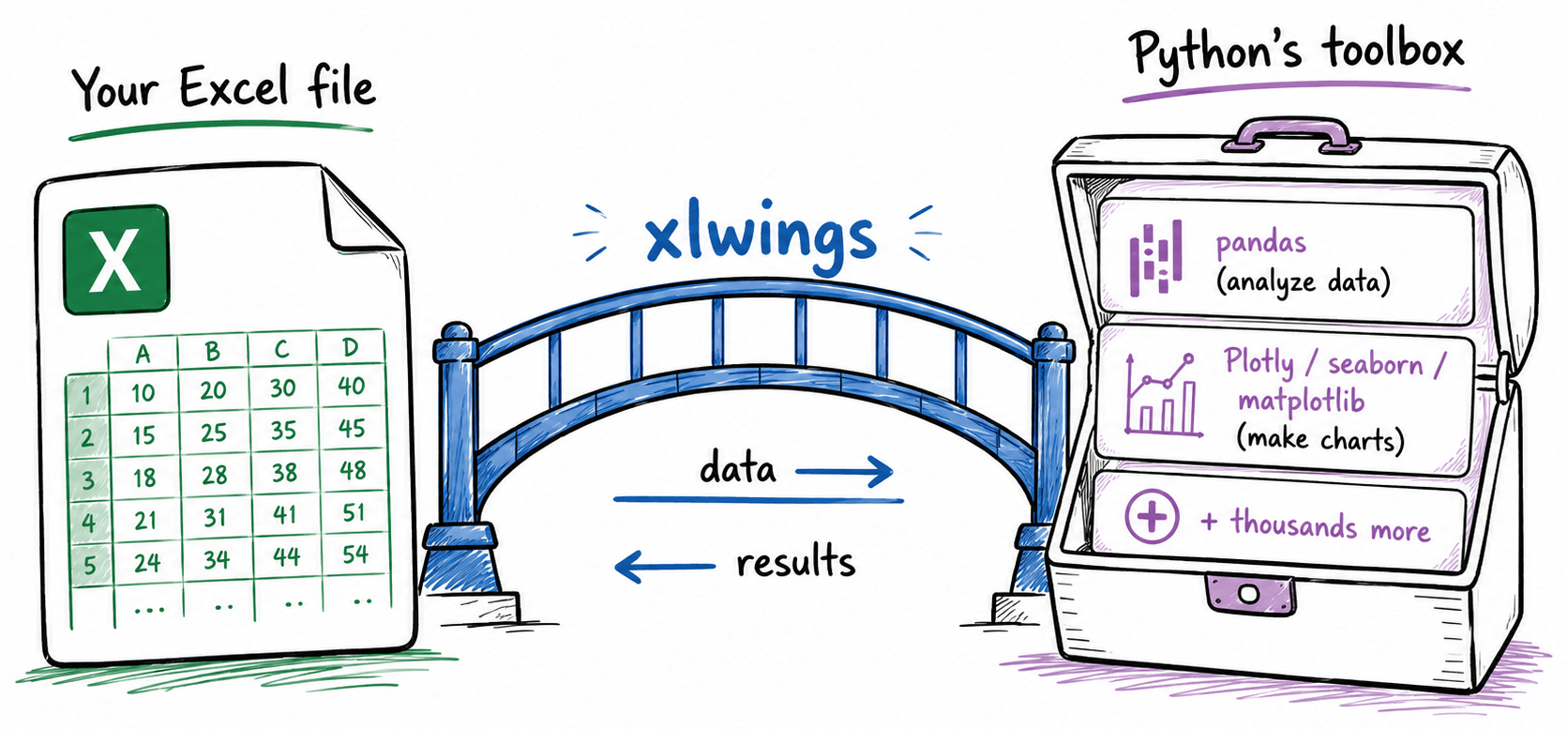
A third-party Python library. You can think of it as a bridge between Excel and Python's tools, but it also automates your spreadsheet directly: adding sheets, writing values to cells, building charts, and more.
Coming from VBA? This will feel familiar
The same kind of automation you'd write in VBA, now in Python.
Sub WriteHello()
    Range("A1").Value = "Hello!"
End Sub
import xlwings as xw
sheet = xw.books.active.sheets.active
sheet["A1"].value = "Hello!"
The syntax is very similar. If you've written VBA, this reads almost the same.
What lives inside what
Read it left to right: each piece drops you one layer down.
 Psst! In Python jargon, the pieces on this chain (
book, sheet, range) are called objects.
Also, instead of writing
sheet.range("A1")
you can also write it shorter like
sheet["A1"]
That is called shortcut notation.
xlwings Lite handles this layer for you. You're already inside it, so you almost never touch it directly.
# its name
book.name
# grab the active sheet
book.sheets.active
# add a new sheet
book.sheets.add("Report")
# rename the tab
sheet.name = "Report"
# reach a cell or a range (both forms work)
sheet["A1"]
sheet.range("A1:C5")
# clear all cells
sheet.clear()
# read or write a value
sheet["A1"].value
sheet["A1"].value = "Hello!"
# style it
sheet["A1"].font.bold = True
sheet["A1"].color = "#EBF3FA"
# autofit columns
sheet["A:C"].autofit()
A single cell is just a 1×1 range, so the same methods work either way.
Save each layer in a variable
You can also store each layer in a variable, then reuse it instead of retyping the whole chain.
# Without variables, you retype the whole chain on every line:
xw.books.active.sheets.active["B2"].value      = "Hello!"
xw.books.active.sheets.active["B2"].font.bold  = True
xw.books.active.sheets.active["B2"].color      = "#EBF3FA"
# With variables, you write the chain once and reuse it:
book  = xw.books.active
sheet = book.sheets.active
cell  = sheet["B2"]

cell.value      = "Hello!"
cell.font.bold  = True
cell.color      = "#EBF3FA"
The active App and Workbook are already there
xlwings Lite runs inside Excel, so the running app and the open workbook are handed to you.
# In notebook.py:
book = xw.books.active
# In main.py (the @script flavor):
@script(name="My Script")
def my_script(book: xw.Book):
    sheet = book.sheets.active
The most common moves
Read
# one cell
sheet["A1"].value
# a range
sheet["A1:C3"].value
# by name
sheet["report_title"].value
# the full data block
sheet["A1"].expand().value
Write
# one cell
sheet["A1"].value = "Hello!"
# a row
sheet["A1"].value = ["A", "B", "C"]
# a block
sheet["A1"].value = [[1, 2], [3, 4]]
# a DataFrame
sheet["A1"].options(index=False).value = df
Format
# bold
sheet["A1"].font.bold = True
# font size + color
sheet["A1"].font.size = 18
sheet["A1"].font.color = "#3772A3"
# cell background
sheet["A1"].color = "#EBF3FA"
# currency format
sheet["B:B"].number_format = "$#,##0"
Do something
# auto-size columns
sheet["A:C"].autofit()
# add a sheet
book.sheets.add("Output")
# delete a sheet
book.sheets["Old"].delete()
# wrap as Excel Table
sheet.tables.add(source=sheet["A1"].expand())
() tells the cell to do something. Everything else just describes or sets it.
Psst! In Python jargon, dot-things ending in () are methods;
the rest are properties. Same idea, fancier names.
Putting it all together
Everything we just covered, in one small script.
import xlwings as xw

# 1. grab the layers you need
book  = xw.books.active
sheet = book.sheets.active

# 2. write a value into a cell
sheet["A1"].value = "Hello!"

# 3. style the cell
sheet["A1"].font.bold = True

# 4. autofit the column
sheet["A:A"].autofit()
Grab a layer, write data, format. That is the shape of most xlwings scripts.
@script · run code from a button
Let your user trigger Python with a click.
import xlwings as xw
from xlwings import script

@script(name="Build report")
def build_report(book: xw.Book):
    sheet = book.sheets.active
    sheet["A1"].value = "Hello!"
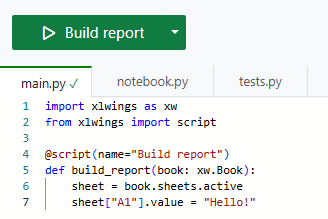
@script turns your function into a button you can click. It receives the open workbook as book.
 What's that
 @ symbol?
It's a decorator in Python: a label that gives your function extra
powers. Here, @script registers it as a button you can click. This is a
simple example; scripts can do much more.
Read the @script docs
@func · call code from a cell
Turn a Python function into an Excel formula.
from xlwings import func

@func
def double(x):
    return x * 2
Add the @func decorator and any Python function becomes an Excel function you can use in a cell.
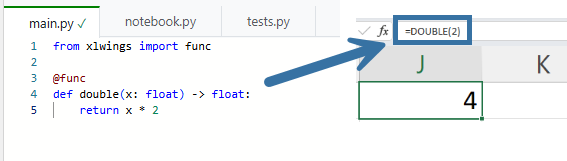 This is the plainest example.
Custom functions can do much more: take whole ranges, return tables, and more. When
you need that, the docs have you covered.
Read the @func docs
This is the plainest example.
Custom functions can do much more: take whole ranges, return tables, and more. When
you need that, the docs have you covered.
Read the @func docs